Legal records
The module manages all legal documents of vehicles and trailers, ensuring that no vehicle operates with expired documents.
Declare the type of legal document
Step 1
Go to Legal Management → Select Document Type to see a list of available documents.
Step 2
Click the Create New button in the upper right corner to start declaring a new type of document.
Step 3
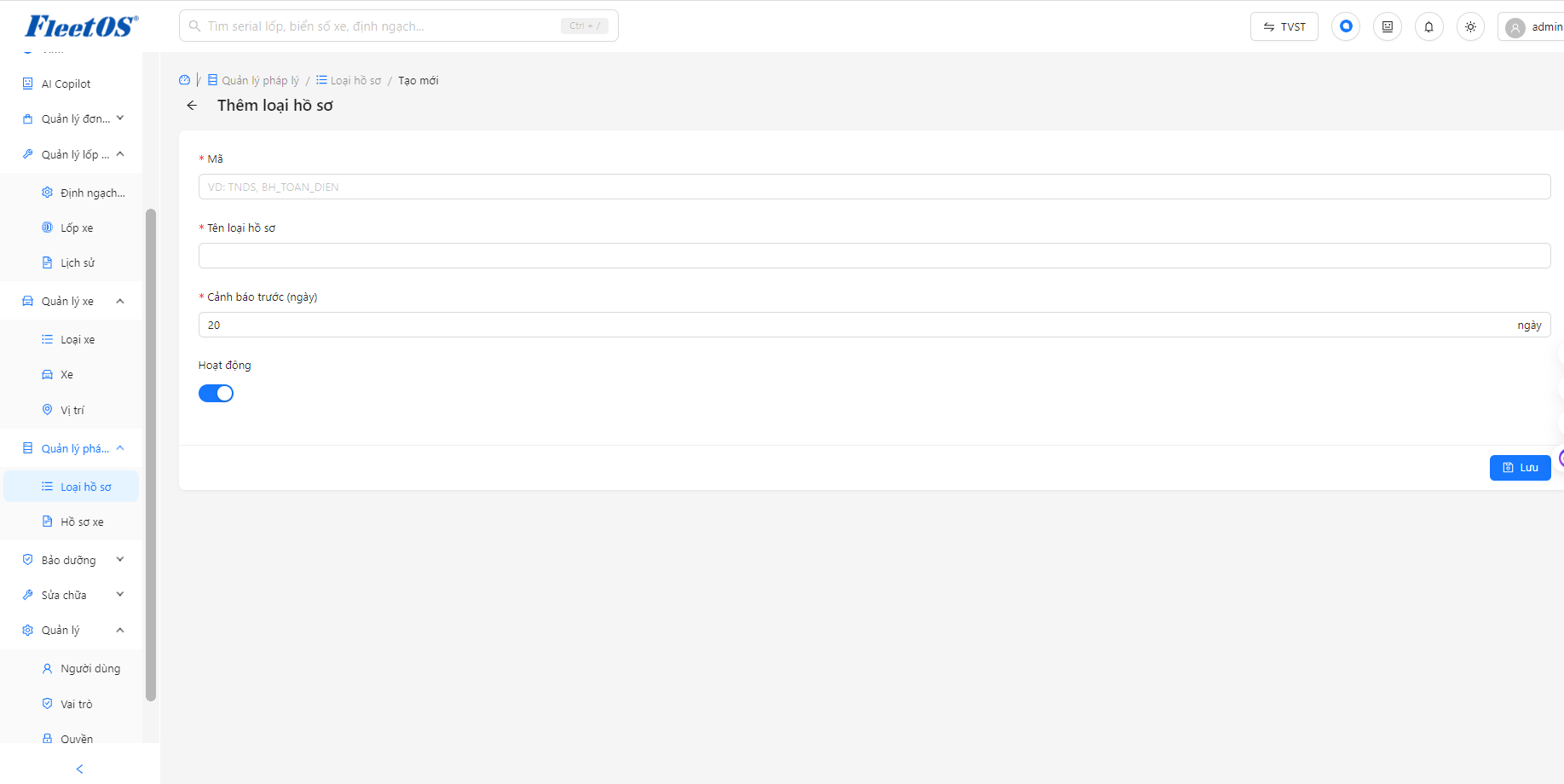
At the “Add file type” screen, fill in all required information (with a *) including: Code (eg: TNDS, DANHKIEM), name of file type (eg: Registration, Material Insurance), and set the number of Advance Warning days.
Step 4
Turn on/off the Operation switch according to usage needs, then press the Save button.
Step 5
After successfully saving, the system will update and display the newly created profile type on the summary list screen.
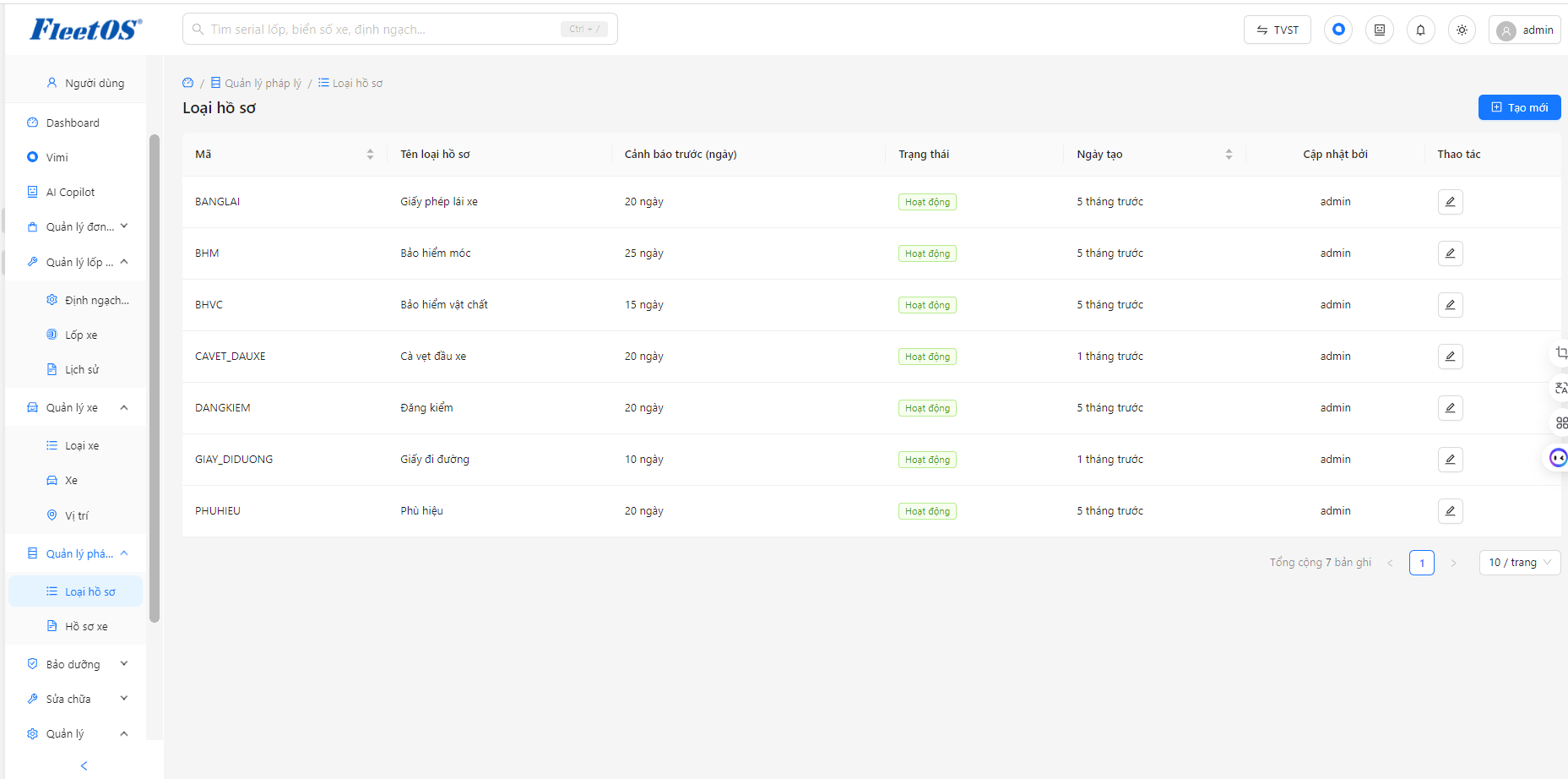
Add profile type
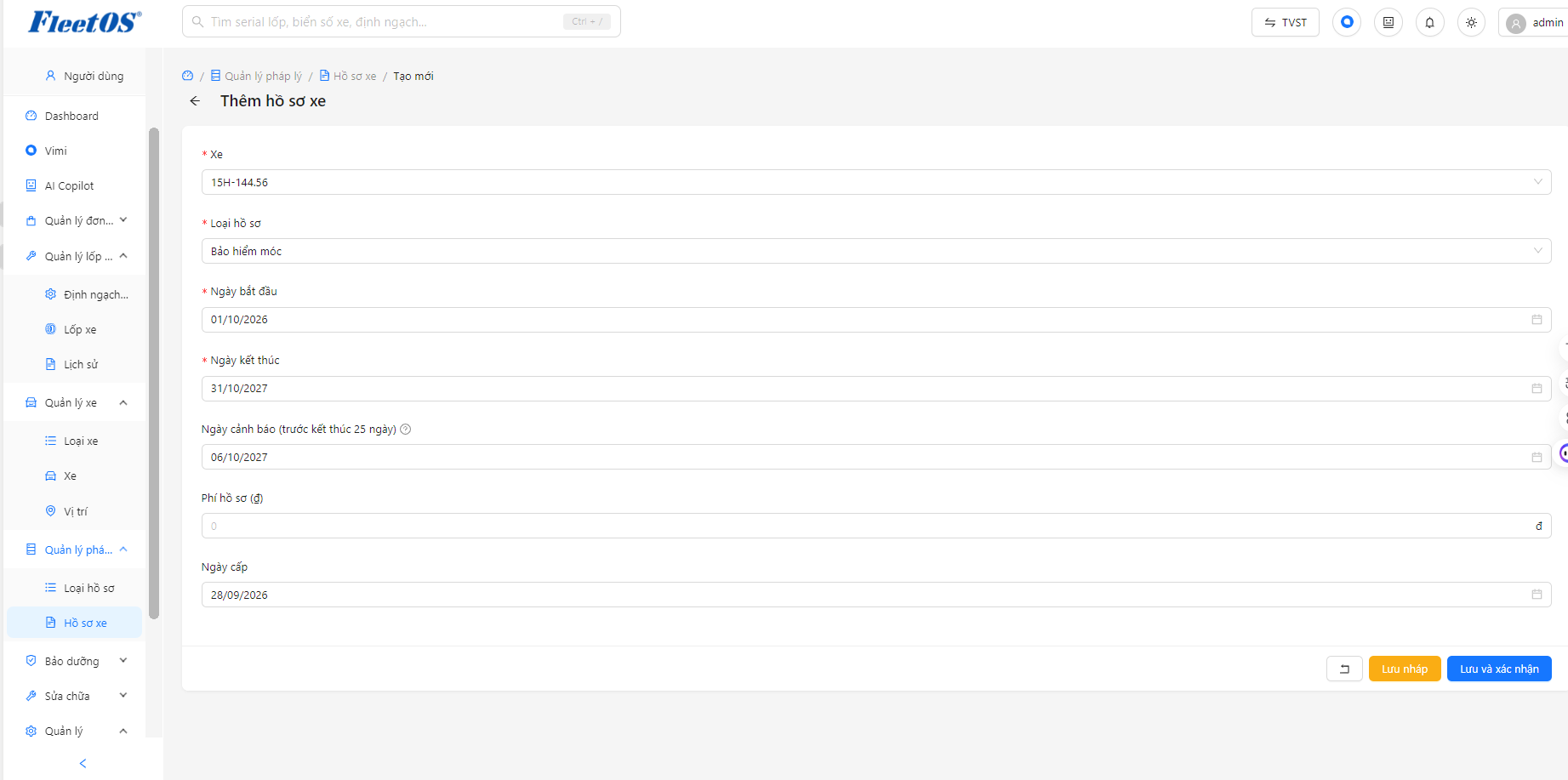
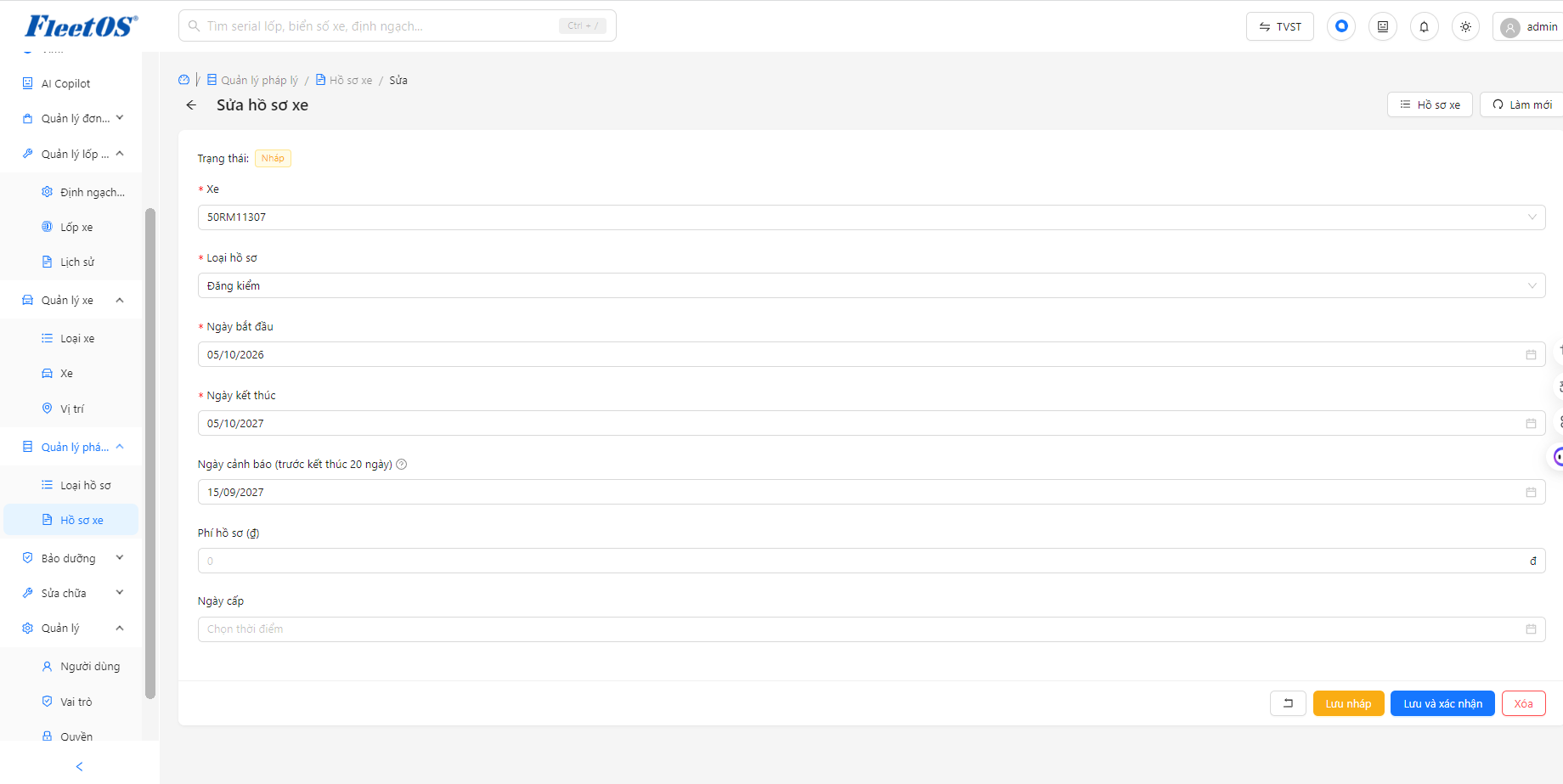
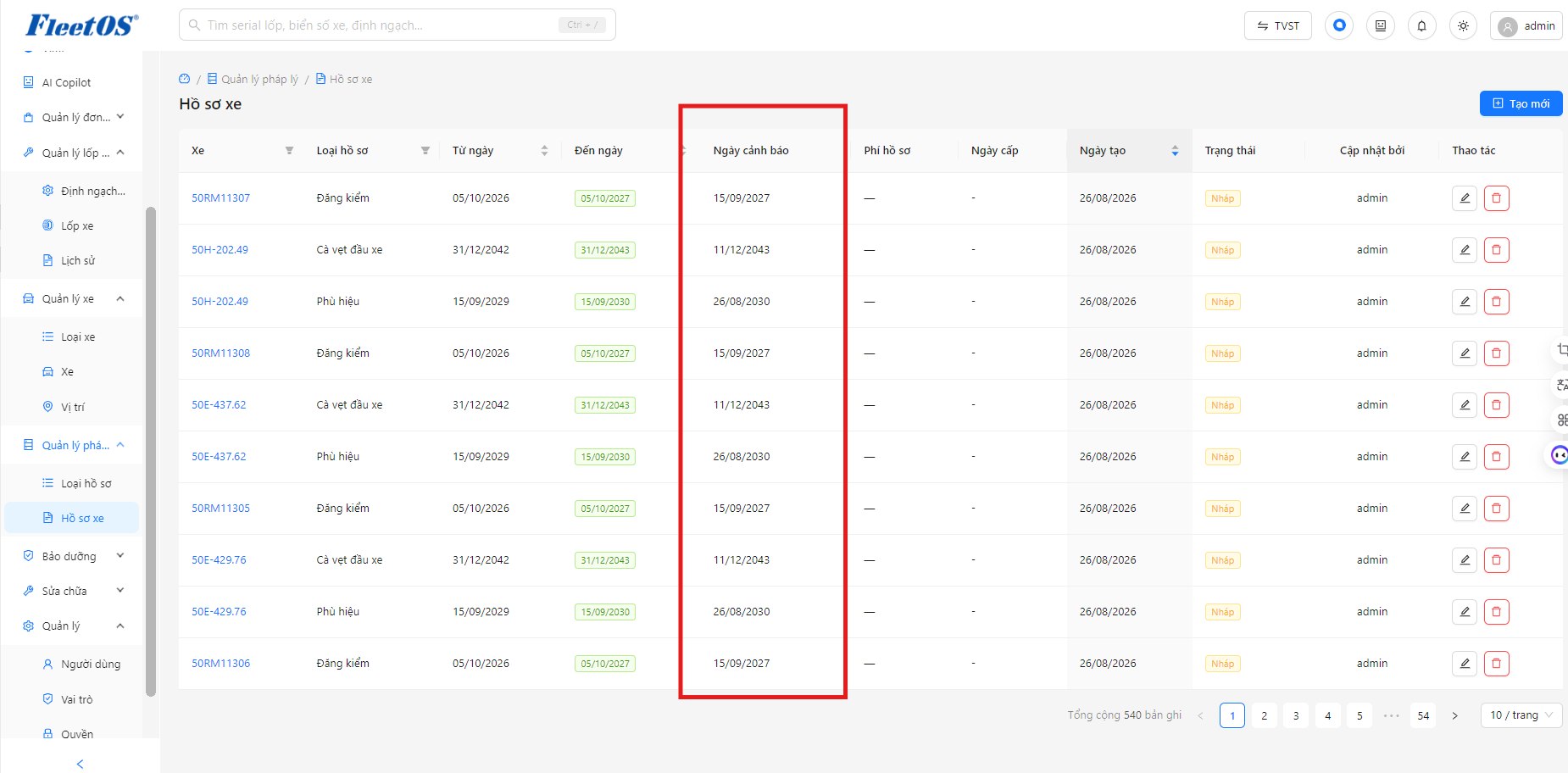
Declare vehicle/trailer recordsStep 1: Go to Legal Management → Vehicle Records. Select the Create new button to add a profile, or click the pencil icon on the list to edit an existing profile.
Step 2
Select the vehicle or trailer that needs to update the profile in the “Vehicle” section.
Step 3
Select the corresponding record type (for example: Registration, Insurance).
Step 4
Enter required timelines including Start Date, End Date, and Grant Date.
Step 5
Attach the scanned file (if available) and click Save (Save draft or Save and confirm) - the system will automatically calculate the remaining days, set the warning date and update the file status.
Add vehicle profile
Edit vehicle profile
Warning about expired records
| Level | Conditions | Recommended Action | |—————|—————————-|————————————-| | Danger | ≤7 days left or overdue | Schedule renewal / registration now | | Need to follow | 8 - 20 days left | Prepare extension documents |
Look up legal file history
View the complete history of a vehicle/trailer’s records over the years
Filter by record type, status, time period
Print or export records list